An ageing router is not automatically a bad router, and a new Wi-Fi generation is not automatically the answer to a slow room. Replacement makes sense when you can identify a requirement the present equipment no longer meets. Separate support, reliability, incoming connection speed and coverage before choosing the next device.
Start with support and safe operation
Check the manufacturer support page for the exact model, hardware revision and regional variant. Look for current firmware and any end-of-life notice. A device that no longer receives security maintenance deserves a replacement plan even if ordinary browsing still works. Do not infer support status just from the date printed on an old box.
Review unexplained restarts, damaged connectors and a failing power supply. Make sure ventilation is clear and the installed firmware is appropriate before declaring hardware failure. Keep a short record of when faults occur and which devices lose service. Repeated failures across wired and wireless clients are different evidence from one phone struggling in a distant bedroom.
Measure the bottleneck you intend to remove
Compare an Ethernet-connected computer with Wi-Fi near the router and in the problem room. Note the computer adapter, cable and negotiated port speed. A 100 Mb/s Ethernet link can restrict a fast service, but the cable or adapter may cause that limit rather than the router. Check each part of the path before replacing the largest box.
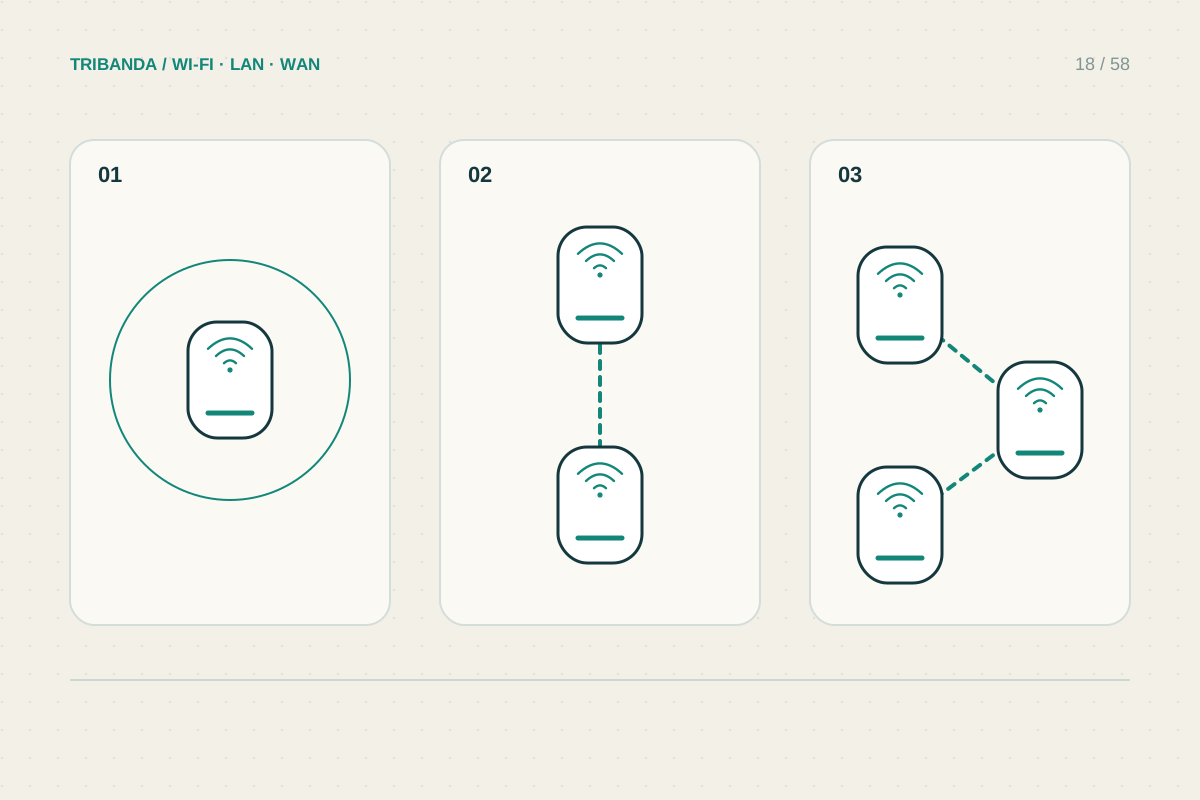
If the wired baseline is healthy and only a far room is slow, repositioning the router or adding a wired access point may address the actual issue. A new central router still has to transmit through the same walls. If only one client performs badly beside the router, investigate that client before buying equipment for the entire home.
Write the requirements in useful units
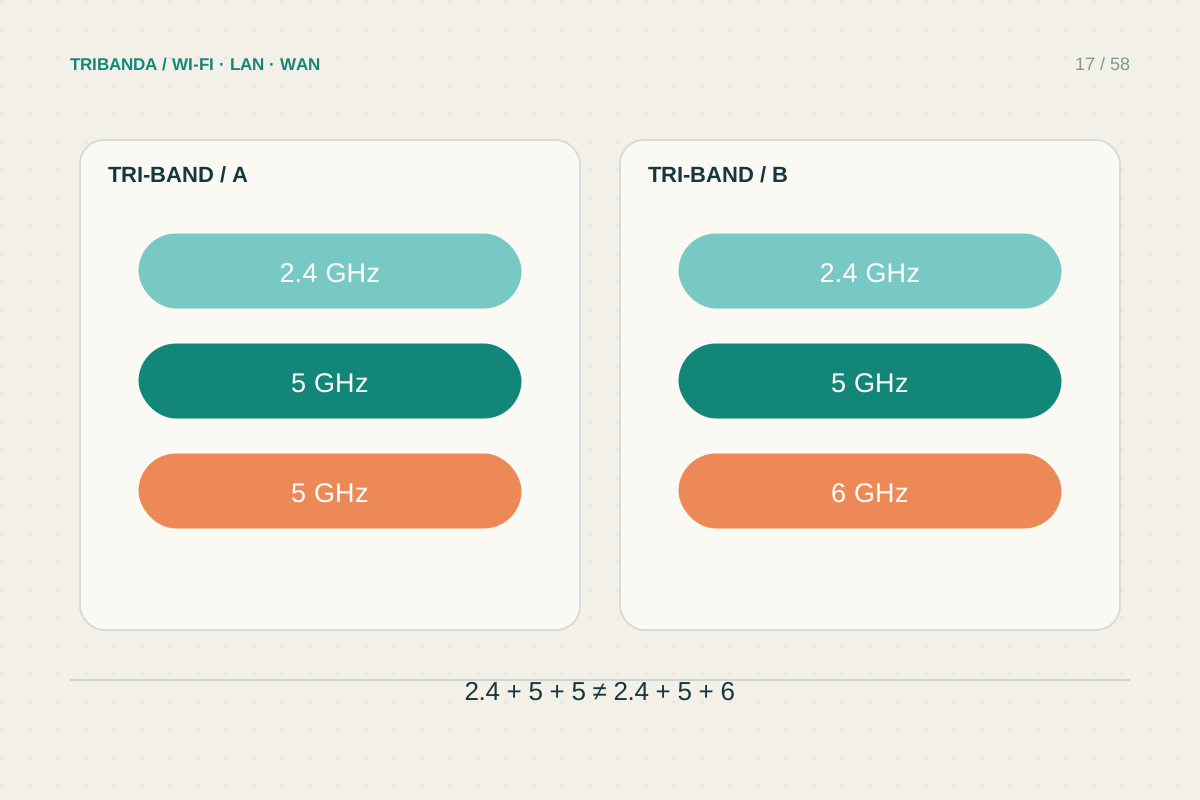
List occupied rooms, wired devices and realistic simultaneous activities. Count WAN and LAN ports, their speeds and any need for Ethernet backhaul. Check that prospective Wi-Fi bands and features work with your clients. A headline wireless rate combines capabilities under particular conditions; it is not a promised download speed for every laptop.
Include requirements that are easy to overlook: access point mode, telephone compatibility, guest isolation, configuration export and the way updates are delivered. Read whether important controls need a cloud account or paid service. Compare these details against the current router so you can explain precisely what the upgrade will add.
Keep a replacement test ready
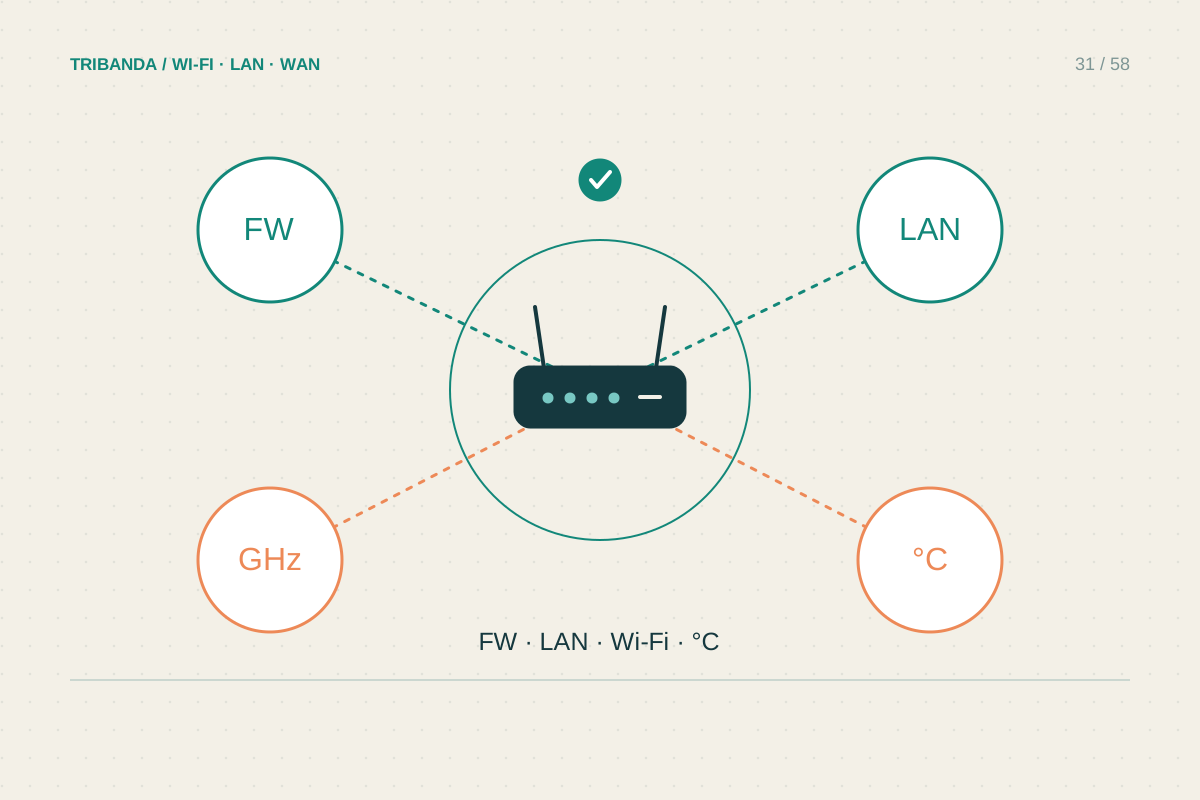
Save the necessary internet settings and photograph current connections. Define a few success checks before installation: a stable work call, reliable television playback, working local printing and an improved weak-room result. Reuse the same client and locations for comparison. Keep the previous router until the replacement passes those checks, then erase its personal configuration before disposal or transfer according to the manual.
Replace for a demonstrated support, reliability or capacity need. Coverage problems may call for a different radio location, and a client or cable fault needs its own repair.
Common questions
How many years should a router last?
There is no universal replacement interval. Manufacturer support, physical condition and your network requirements are better guides than age alone.
Will Wi-Fi 7 make an older laptop faster?
Only compatible features can be used. The laptop adapter and the rest of the connection remain possible limits.
Original technical illustration; schematic, not to scale.