A router's wireless headline can hide a slower wired link. Before buying, trace the connection from the optical terminal or modem to the router, and from the router to any switch, desktop or mesh node. Every port in that route needs to suit the job you expect it to do.
Distinguish WAN from LAN
The WAN port usually connects towards the provider; LAN ports connect your local devices. Some models allow a port to change role. Record the number and speed of the ports available after selecting the required WAN configuration. A single fast configurable port cannot simultaneously be a dedicated fast WAN port and a separate fast LAN port.
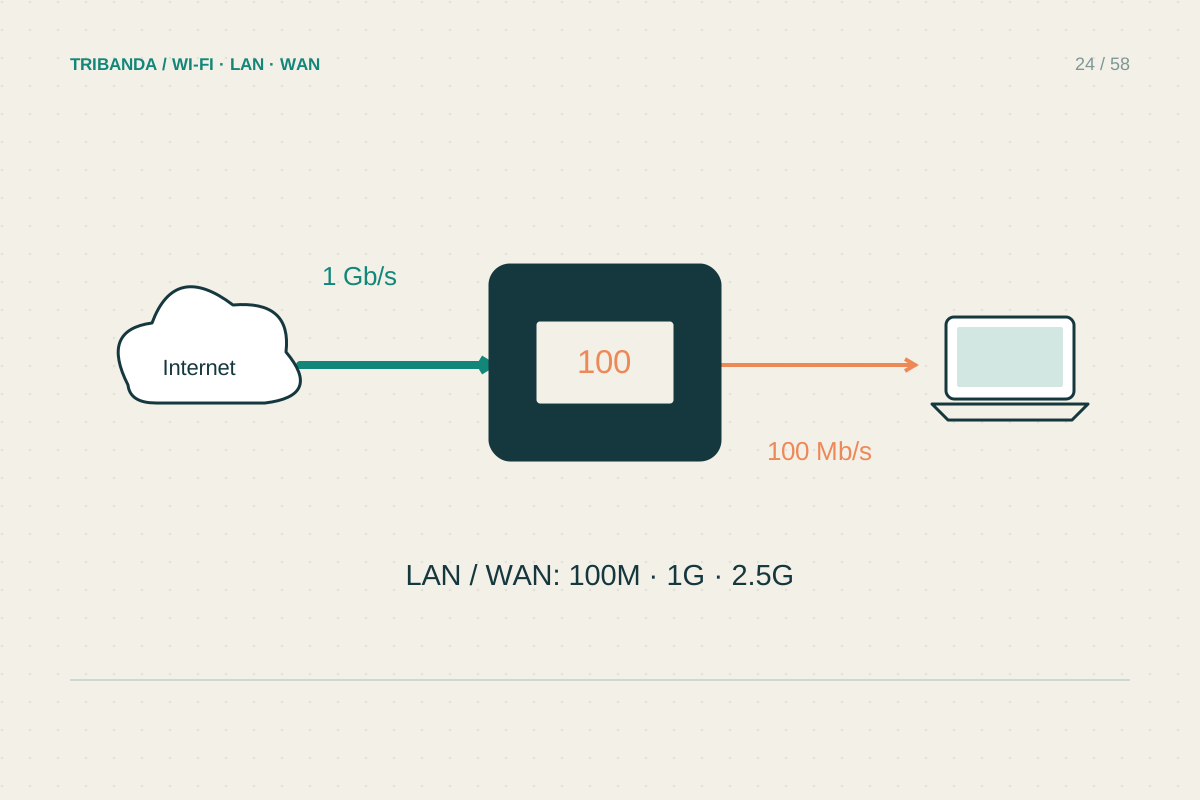
For an internet plan above a gigabit, check the provider's terminal port as well as the router's WAN port. Then check the LAN port and the computer's adapter if you want one wired computer to use that capacity. A 1 Gbps link anywhere along that route limits that individual path; protocol overhead means application results are lower than the nominal link rate.
Count what will stay plugged in
List the desktop, television, console, NAS, access point and any wired mesh connection. Add the upstream switch connection if you plan to expand later. A spare port is useful for diagnosis: it lets you connect a test computer without disrupting a device that somebody else is using.
A switch adds ports but does not increase the capacity of its uplink. Several devices on a switch share that connection when their traffic crosses it. For ordinary televisions and printers that may be entirely reasonable. Large transfers between a NAS and a workstation deserve a more deliberate port and switching plan.
Check the full connection, then test
Read the exact regional specification and hardware version rather than relying on a family name. Note whether multigigabit ports support the rates your equipment uses and whether features such as link aggregation require particular partners. Two cables do not automatically combine into one faster connection; unsupported parallel connections can create a network loop.
After installation, inspect the negotiated link speed on the router or computer. If a supposedly fast connection negotiates at 100 Mbps, try a known-good cable and another compatible port before changing Wi-Fi settings. A short labelled diagram of ports and cables makes future troubleshooting much easier, especially when the router sits behind furniture.
Compare the number, speed and role of ports. Wireless performance cannot bypass a bottleneck on the wired route carrying the same traffic.
Common questions
Will a USB Ethernet adapter help?
Only if the adapter, USB connection, driver and upstream network support the required rate. Check the whole path before buying one.
Does every device need multigigabit Ethernet?
No. Match capacity to actual traffic. A printer or a modest streaming device usually has different needs from a workstation transferring large local files.
Original technical illustration; schematic, not to scale.