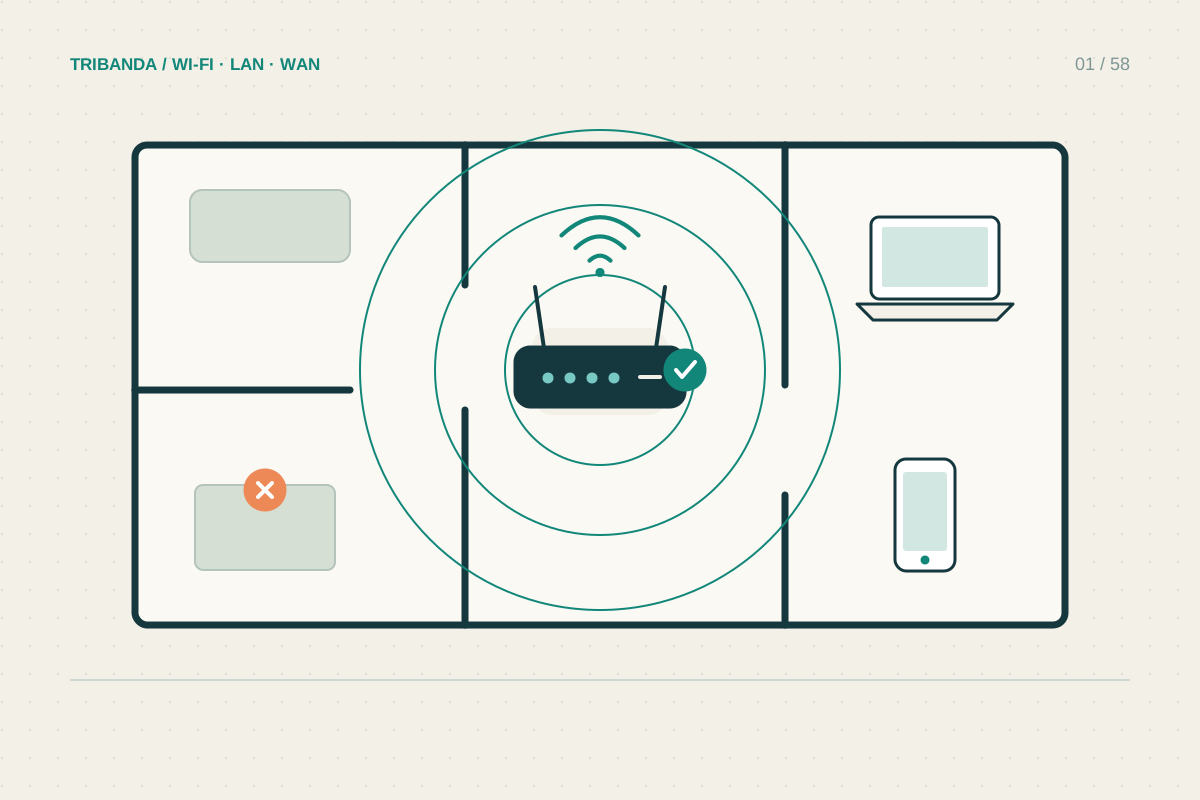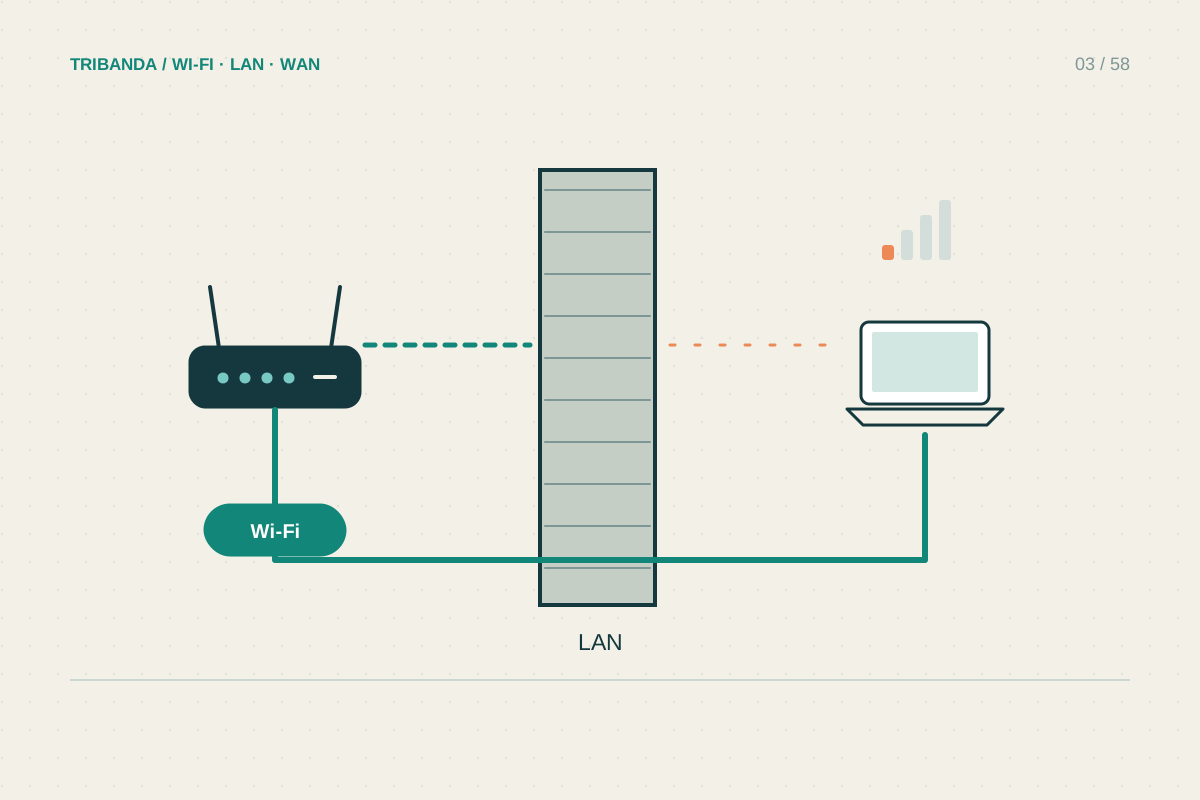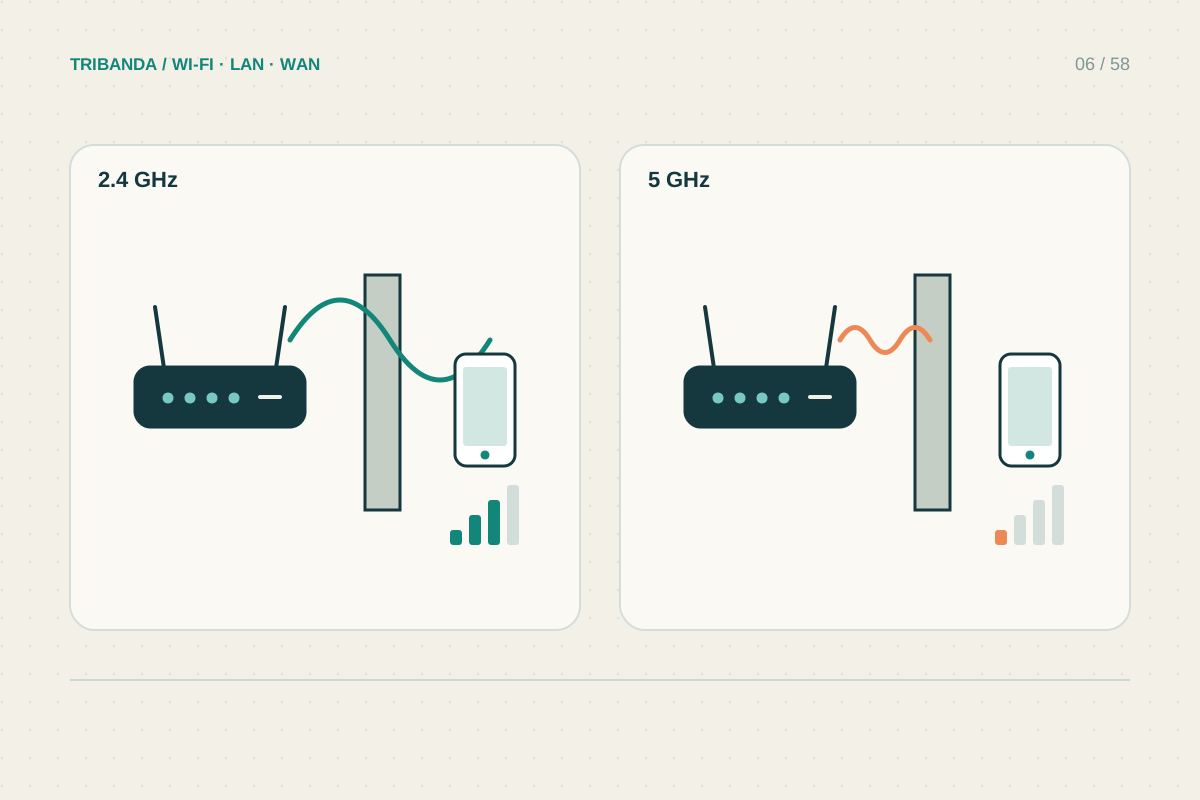
The best band is the one that supports the task from the place you use it. A 5 GHz connection can be excellent beside the router and unreliable behind several walls. A 2.4 GHz connection may reach that room but share airtime with more neighbouring devices.
Understand what the choice changes
Both bands provide Wi-Fi, not different internet subscriptions. A device must support a band to join it. Many simple connected products support only 2.4 GHz; a recent laptop often supports both. Check the exact device specification before looking for a missing network in router settings.
The 5 GHz band usually offers more capacity nearby and is more affected by obstacles. The 2.4 GHz band often covers further but has less room for wide, separate channels. These are tendencies, not guaranteed distances or speeds. Construction and neighbouring traffic can reverse a simple expectation.
Make a fair comparison
If the router uses one network name, it and the client may select the band automatically. The management app or device connection details can show the current band. Separate temporary names can help diagnosis, but changing names also requires reconnecting devices and can alter their behaviour.
Keep security settings equally sound on both bands. Do not weaken encryption to make a band appear faster. For an old appliance that cannot join a secure network, check its supported security and available updates before considering an isolated compatibility network.
- Find the device’s supported bands and current connection.
- Test the normal task in the room on the current band.
- Compare the other supported band from the identical position.
- Repeat at a busy time and note interruptions as well as speed.
- Restore ordinary network names after diagnosis if automatic selection works well.
Give each task a sensible connection
For a television or work computer close to the router, try 5 GHz or Ethernet. For a low-data sensor behind a wall, a stable 2.4 GHz link may be sufficient. The goal is not to move every device to the band with the larger number.
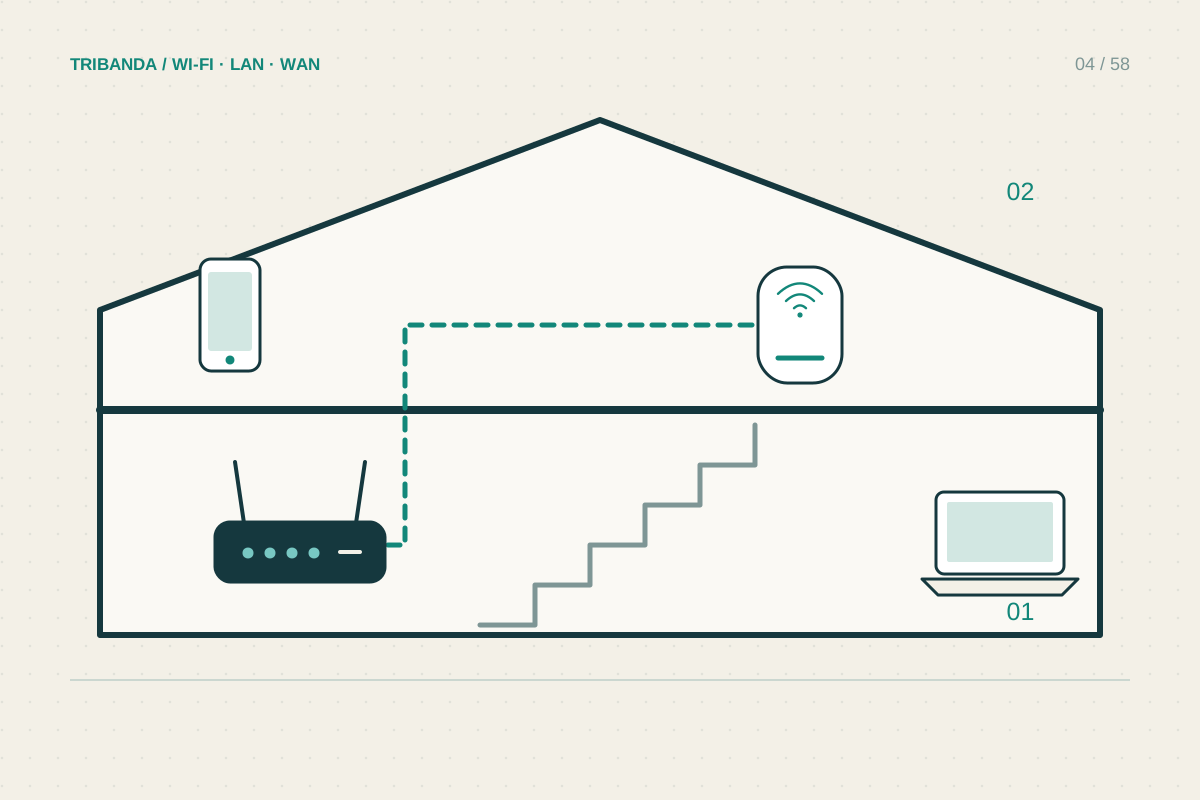
If neither band supports reliable work in the room, the choice has exposed a coverage problem. Improve placement or add a properly connected access point. Repeatedly forcing a phone to 5 GHz at the edge of coverage can make daily use worse despite a faster result beside the router.
Choose the band by the room and workload. A slower but stable link can be preferable to a fast connection that repeatedly disappears.
Common questions
Does 5 GHz mean mobile 5G?
No. Here GHz describes a Wi-Fi frequency band. Mobile 5G is a separate cellular technology.
Should smart plugs always use a separate router?
No. Many work on the main router’s 2.4 GHz band; compatibility and isolation settings determine the setup.
Original technical illustration; schematic, not to scale.